
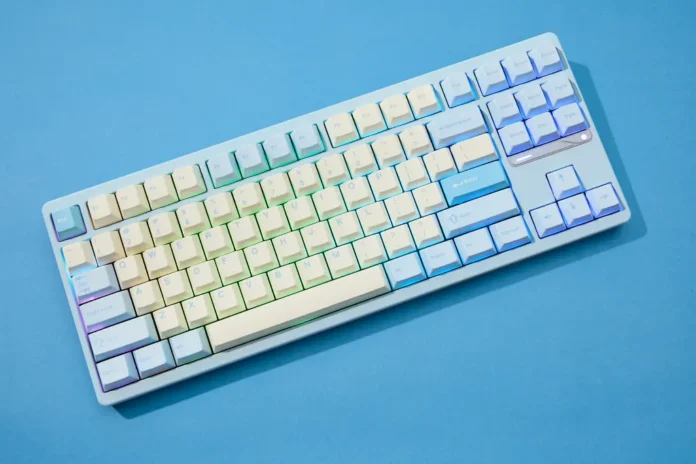
Typing is one of the most common digital actions today. Emails, chats, documents, and social media posts all depend on fast and comfortable text input. Yet many people still use their keyboards exactly as they were installed.
Smart keyboard customization can change that experience quickly. When a keyboard adapts to your habits, typing becomes faster, more accurate, and less mentally tiring. Modern tools use predictive text, shortcuts, voice input, and AI suggestions to make writing smoother.
Research shows that word prediction systems can increase typing speed and reduce the effort required to enter text, especially on digital keyboards.
This guide shares practical ways to customize your keyboard so typing feels smoother, smarter, and more efficient.
Why keyboard customization matters more than you think
Most people assume typing speed depends only on how fast their fingers move. In reality, the real bottleneck is often the keyboard interface itself. Predictive tools, layouts, and shortcuts can reduce the number of keystrokes required to produce the same text.
When a keyboard is customized well, it begins to anticipate your behavior. It remembers phrases you frequently type, corrects errors automatically, and suggests entire words before you finish typing them.
Here are several ways customization improves typing efficiency:
- Predictive text reduces the number of characters you need to type.
- Personalized dictionaries prevent repeated corrections.
- Shortcut phrases replace long expressions with a few letters.
- Gesture typing lets you slide between letters instead of tapping each key.
When all these features work together, the keyboard feels less like a tool and more like a collaborative assistant.

AI keyboards that predict what you want to say
Modern keyboard software has evolved far beyond simple spellcheck. Artificial intelligence now analyzes writing patterns, context, and language behavior to predict words and sentences.
One example is Sogou, a widely used input method that uses advanced machine learning and natural language processing to predict words and phrases while typing. The system analyzes context and typing history to suggest complete expressions after only a few keystrokes.
Adjust predictive text and autocorrect settings
Predictive text is one of the simplest yet most powerful customization options available on modern keyboards. When configured properly, it can dramatically speed up writing.
However, many users never adjust these settings after installing a keyboard.
A well tuned predictive system should:
- Suggest words based on context rather than just spelling
- Learn frequently used phrases
- Avoid aggressively changing intended words
- Offer phrase completion suggestions
Predictive text systems work best after several days of regular typing because the system learns your writing patterns and vocabulary.
Most devices allow predictive text to be customized in keyboard settings. Spending just five minutes adjusting suggestions and correction strength can make typing noticeably smoother.
Create text shortcuts for phrases you type often
Shortcut phrases are one of the most underrated productivity features in any keyboard.
A shortcut allows you to type a short code that automatically expands into a longer phrase. Once configured, it can save thousands of keystrokes over time.

Here are common examples of shortcut phrases:
|
Shortcut |
Expands to |
| eml | your full email address |
| adr | your full mailing address |
| sig | email signature |
| ty | thank you very much |
After setting a few shortcuts, routine typing becomes significantly faster.
The real power comes when shortcuts are used for work tasks. Customer support replies, project updates, or meeting summaries can all be triggered with a few letters.
Customize keyboard layout and visual design
Typing comfort also depends heavily on visual clarity and key spacing. Fortunately, many modern keyboards allow layout adjustments and theme changes.
These adjustments are not purely cosmetic. They directly influence typing accuracy.
Customization options often include:
- Changing keyboard size or key spacing
- Switching to one handed mode on larger phones
- Adjusting key press sound and vibration feedback
- Using high contrast themes for better visibility
Some keyboards even support downloadable skins and interface themes that personalize the experience. Certain typing tools offer hundreds of visual themes so users can adapt the keyboard appearance to their preferences.
When keys are easier to see and press, mistakes drop naturally.
Use gesture typing and voice input for faster writing
Typing does not always require tapping each key individually. Gesture typing and voice input are powerful alternatives that many users overlook.
Gesture typing allows you to slide your finger across letters in one continuous motion. The keyboard analyzes the path and predicts the intended word.
Voice typing works differently. Instead of typing at all, you simply dictate the message and the system converts speech to text.
Here is how these methods compare:
|
Input Method |
Best Use Case |
Speed Potential |
| Traditional typing | precise writing | moderate |
| Gesture typing | quick messages | fast |
| Voice typing | long text or notes | very fast |
Many modern keyboards include both gesture typing and voice transcription capabilities, which helps users switch methods depending on the situation.
Using multiple input methods keeps typing flexible and efficient.
Train your keyboard to learn your vocabulary
The smartest keyboards become better over time because they learn from the way you write.
Every time you type a phrase, add a contact name, or correct a word, the keyboard can incorporate that information into its language model. Eventually, it starts predicting exactly the words you usually use.
To accelerate this learning process, you can actively train your keyboard:
- Add industry specific terms to the dictionary
- Save names of colleagues or friends
- Import contacts to improve predictions
- Accept useful suggestions instead of retyping them
Over time the keyboard becomes highly personalized. It begins suggesting full phrases or sentences you frequently write.
This adaptive learning is one reason intelligent keyboards are becoming central productivity tools.

A small change that can transform daily typing
Keyboard customization might seem like a small technical tweak. In practice it can dramatically change how comfortable and efficient typing feels.
Once predictive text, shortcuts, gesture input, and personalized dictionaries are configured properly, writing becomes more fluid. Messages take fewer keystrokes. Mistakes decrease. The keyboard begins assisting instead of interrupting.
The key is experimentation. Try different keyboard apps, adjust settings, and add shortcuts gradually. Within a few days, you will notice that typing requires less effort and fewer corrections.
Small improvements in daily tools often create the biggest productivity gains. A smarter keyboard is one of the easiest upgrades you can make to your digital routine.


