
Microsoft Office, or simply Office, enjoys immense popularity among Windows and Mac users, and for good reason. In essence, Office is a suite of applications that helps you manage your everyday tasks in a more efficient manner. Though there are numerous worthwhile alternatives to Microsoft Office, more and more users opt exactly for Microsoft’s native products to create their presentations, analyze business data, organize work plans with a team, and perform other tasks. If you’re about to download Microsoft Office onto your Windows or Mac PC, but don’t know where to start, we suggest that you start with your article.
Downloading Office
If you downloaded Microsoft’s products before, you know where to look for them. We highly recommend that you don’t use any third-party online sources that may offer “free” or “cheap” versions of Microsoft Office. Remember, your security should be top of mind, so don’t try your luck and head straight to the Microsoft product page if you want to spare yourself a good deal of bother and unwanted hassle.
Once you land on the main page, you’ll need to choose the version that will best suit your needs. Click on the “For Home” option if you don’t intend to use Office for commercial purposes. Should you require a business version, suitable for commercial uses, click on the “For Business” button, instead.
Note that if you opt for a home version, you’ll need to pay a yearly subscription or purchase a one-time subscription. The monthly subscription is available for business users only. Click the “Buy Office 365” option and select the subscription to your taste. Once you pick the required option, click “Buy Now” and select the “Checkout” option.
Log in to your Microsoft account.
Select the “Place order” option. Now you can download the program onto your PC.
Installing Microsoft Office on Windows
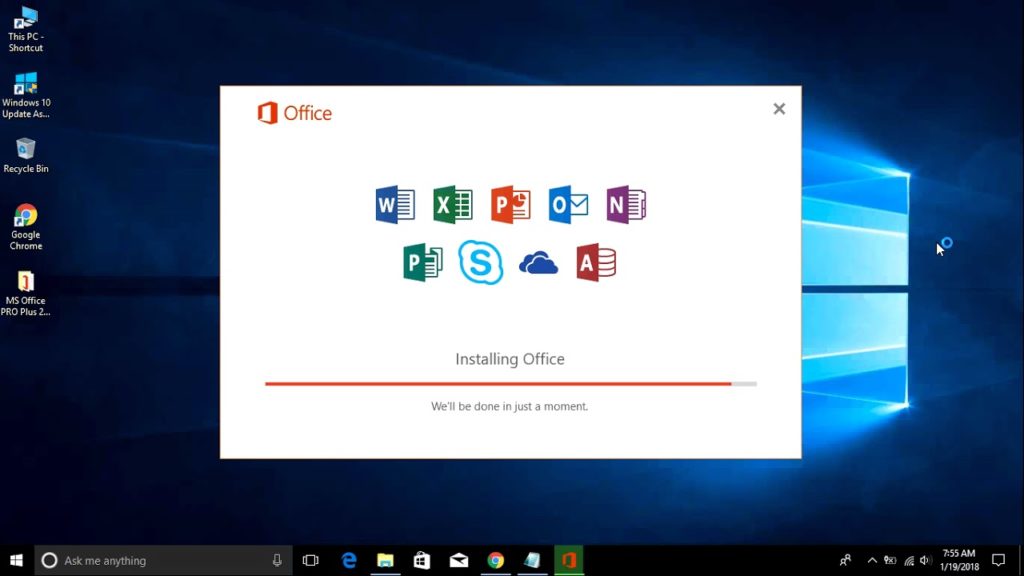
Go to your Office purchase page and choose the “Install” option.
Once you select the “Install” option you’ll be prompted to choose the same option again. It’s necessary for the setup file to start downloading.
- If you’ve made a one-time purchase (Office Home & Student 2019), you can skip this step.
It’s about time you double-clicked the downloaded file which will be saved in your default Downloads folder unless you specify some other location.
Then, click “Yes” to confirm your intention to install the new program. Once you do that, the setup file will begin installing the version of Office you’ve purchased.
Depending on your Internet connection, hardware, and other factors, the installation process will take up from half a minute to about five minutes.
After the new program finishes installing, click the “Close” button.
Installing Microsoft Office on Mac
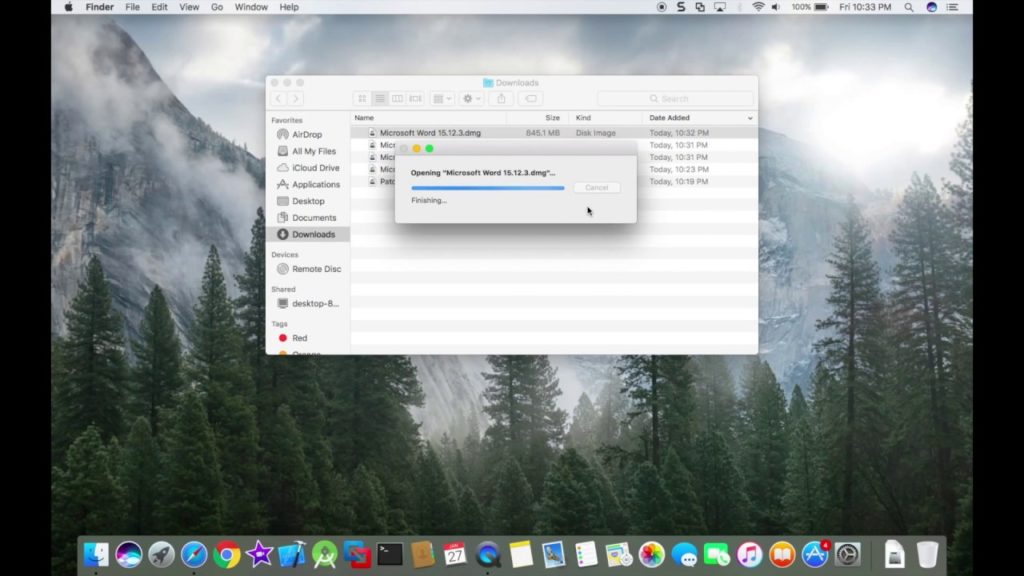
As we have noted, you can also enjoy Office on your Mac OS computer.
As is the case with Windows, installing Office on Mac will require you’ to go to your Office purchase page and click the “Install” button.
Make sure to click the same button when prompted. Thus, you’ll ensure that the setup file will start downloading.
- If you’ve made a one-time purchase (Office Home & Student 2019), you can skip this step.
After that, navigate to your Finder, select Downloads, and click on the Office file you’ve just downloaded.
Click “Continue” on two different pages to go on with the installation. Then, select “Agree.” By doing so you’ll confirm that you accept all terms and conditions.
Choose “Continue” once you’re ready.
Click the “Install” button and type in your Mac password when prompted.
Select “Install Software” and wait for the download process to complete.
Once Office is installed, you’ll be notified of the successful installation of the software.
Click the “Close” button and start enjoying Microsoft Office on your Mac PC.
Bottom Line
We hope our article will help you download and install Microsoft Office on your computer and use it to its full potential.